In a doc you can chat with Cloudairy AI in a panel beside the page, write a new section in place, or improve text you select.
A new doc opens with the AI panel ready, headed Let's write. On any doc, click Show AI chat at the top left to open it.
Click a chip to start, or type your own request in Ask Cloudairy AI…. Chips: Summarize, Improve writing, Task list, PRD, Meeting notes, Blog post.
Click Send message, or press Enter.
The AI writes into your doc and shows what it changed in the chat. Some answers come as Suggested text for you to review first.
More controls in the panel:
To hide the panel, use the panel button in its header or Show AI chat in the doc's top bar.
Click on an empty line where you want the new text.
Type / and pick Create with AI. (Or press Space on an empty line.) A box that reads Ask Cloudairy AI… appears.
Describe what to write, for example "A short FAQ about refunds", and press Enter.
Review the text, then:
If the AI needs more detail, it asks a question with options. Pick one, or type your own answer in Something else….
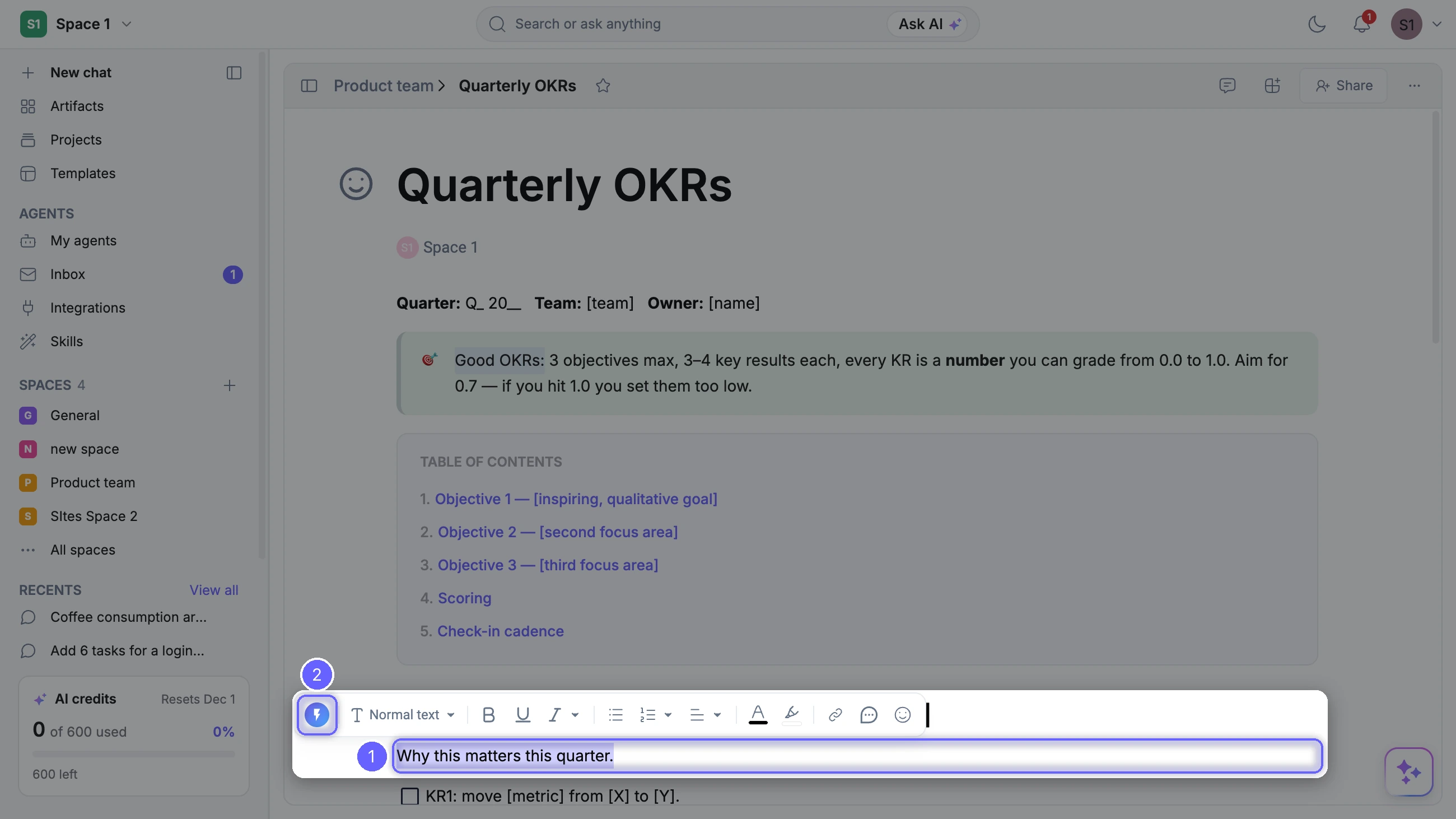
Select the words, sentence or paragraph you want to change.
In the bubble toolbar that appears, click AI actions.
Pick what you want the AI to do with the selection.
The AI suggests a new version. Keep it or close it.
The same bubble has a lightning button that opens AI Suggestions, a set of visual templates.
A Mermaid block (type /mermaid) draws a diagram from text. Click Edit in canvas on it to make a new canvas from the diagram and open it.
You don't need an empty doc first: click New chat, pick Docs (or Wiki for a set of pages) in Create ▾, and describe it. Or use Generate with AI in the New Doc dialog. See Use the New dialog.