Describe a website and Cloudairy AI plans it, builds it and lets you publish it, then refine it in chat, by clicking any text or picture, or in the code.
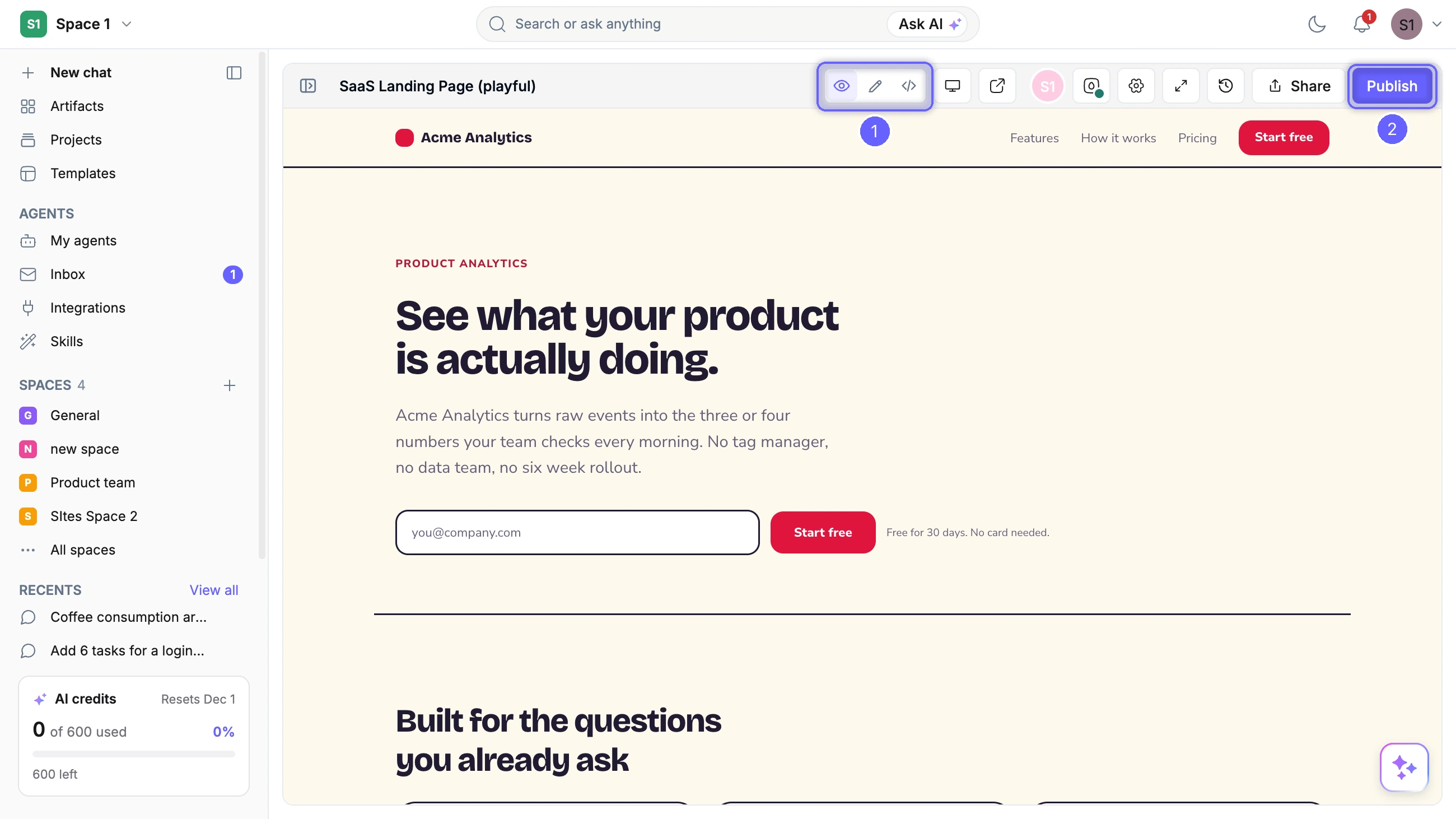
Cloudairy AI writes a Site plan: three looks to pick from, a page outline you can change section by section, and the full plan as an editable document.
Type what you want changed, attach a file or picture (up to 20 MB), or speak it. Pick a section first to aim the change at it.
Click any text, picture or block in Edit text to change fonts, colours, spacing and backgrounds, replace pictures, add alt text, and set form field labels.
Pick a style (Site default, Minimal, Corporate, Dark, Elegant, Playful) and set the brand, background, card and text colours.
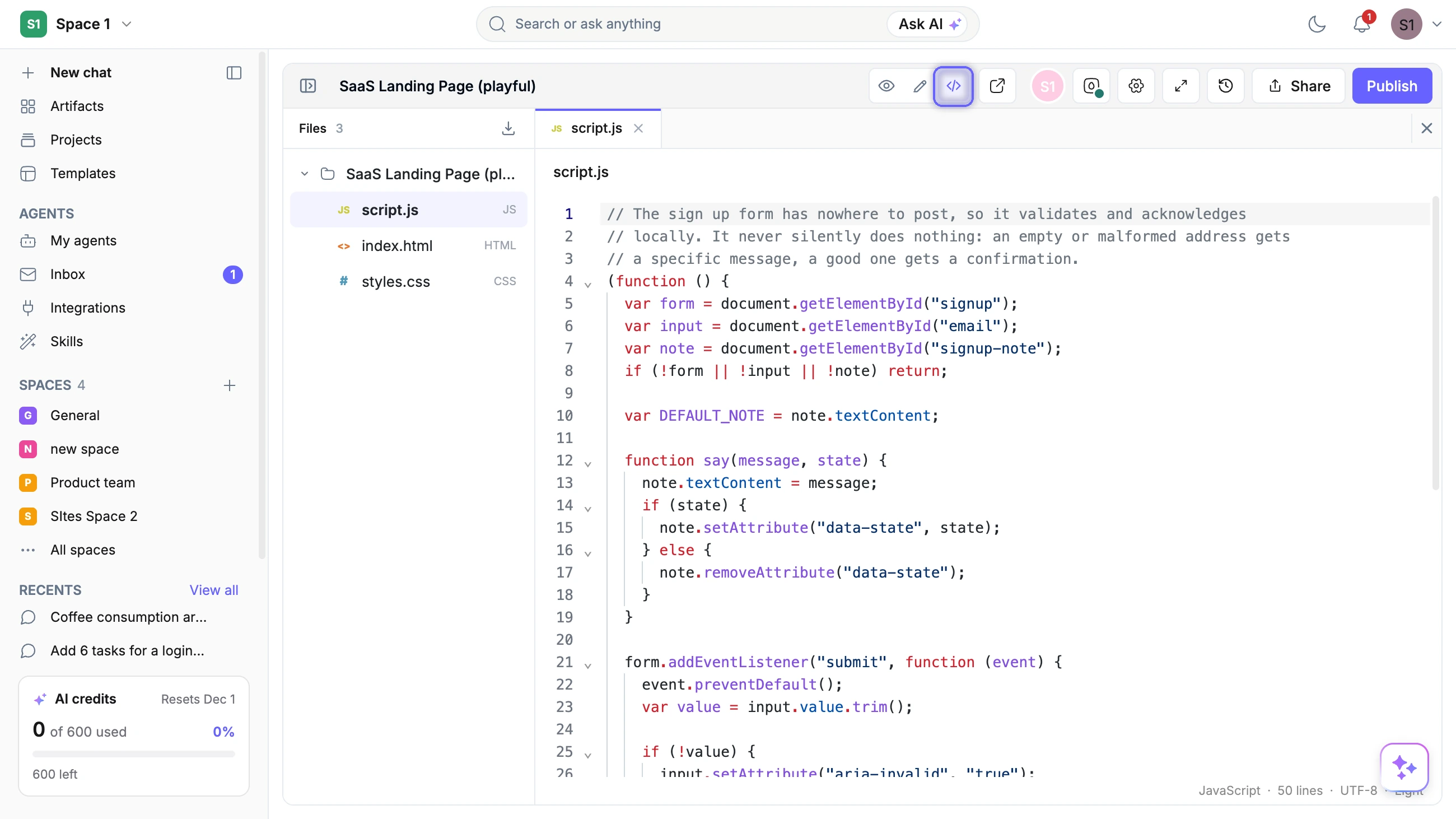
Switch to Code for the file tree and editor, replace assets, and download the project.
Publish at a free Cloudairy address or your own domain, see visits, run a headline A/B test, read form submissions, translate the site and add a password.
| Where | What to click |
|---|---|
| Artifacts | Make something new > Sites. New chat opens with Sites picked. Describe the site. |
| New chat | Click Create and pick Sites. |
| Templates | Left sidebar > Templates > type Sites > Preview (the site runs live) > Use template. |
| A project | Project page + > Site. |
| Your Files | Artifacts > Your Files > a site. |
See Build a site.
Building and changing a site uses AI credits. See AI credits.
| Free | Pro | Business | Enterprise | |
|---|---|---|---|---|
| Sites | Count toward 3 items in total | Unlimited | Unlimited | Unlimited |
| AI credits | 100 | 1,000 | 2,500 | Unlimited |