Design a database visually: draw tables, fields and relationships, then copy or download the SQL for PostgreSQL, MySQL, MariaDB, SQLite or SQL Server.
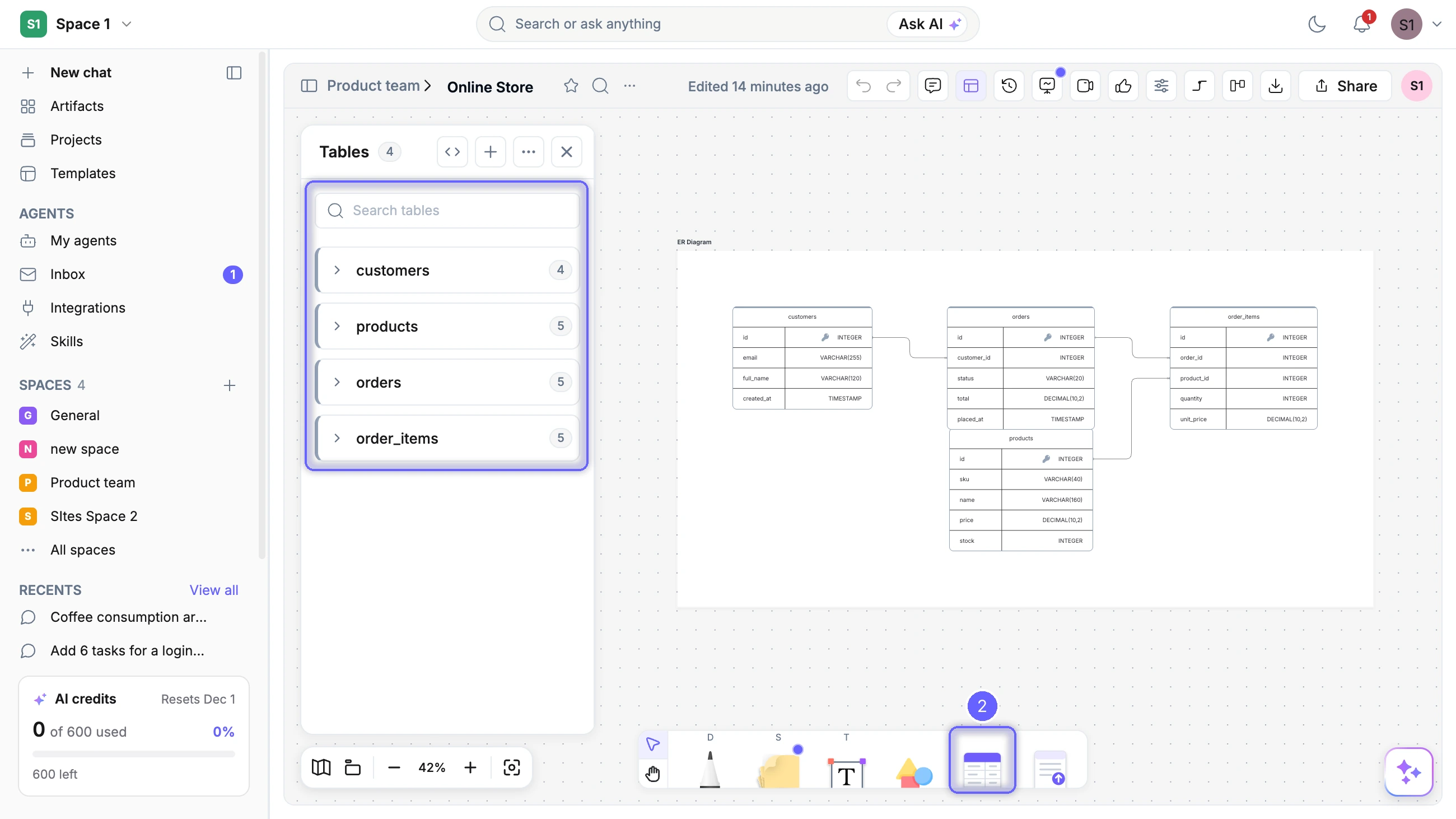
An ERD (entity relationship diagram) opens in the canvas editor with a Tables panel, so you can sketch around it with sticky notes, text and shapes too.
Search tables, and for each one set its fields (name, type, nullable, primary key, attributes), indexes and colour.
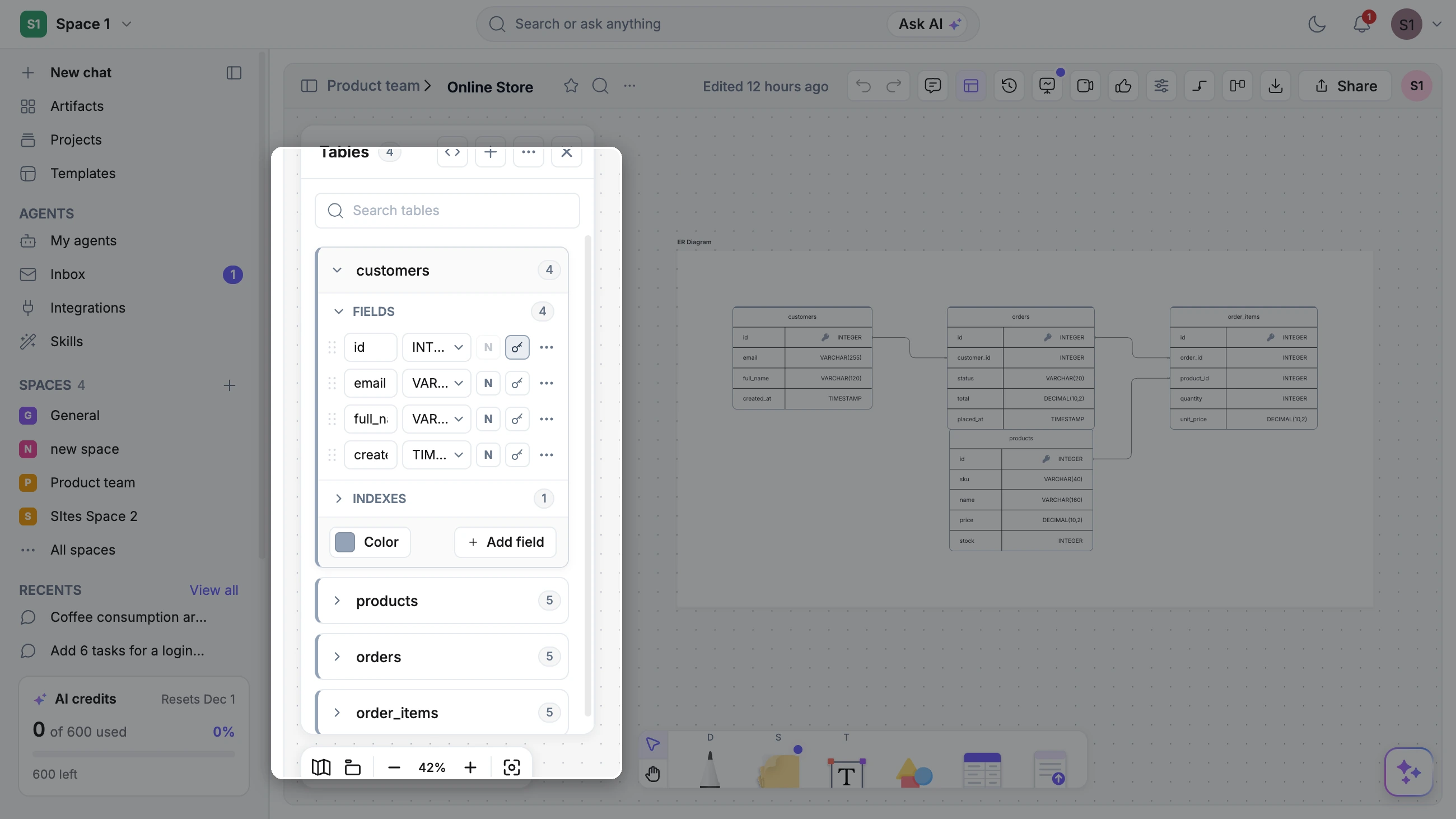
A field's ⋯ opens Field attributes: Unique, Array, Default value, Max length and Comments.
View DBML script opens a code editor with error lines. Edit the script and Apply to board.
Bring in a schema as JSON, SQL, DBML, text, CSV or Excel, with a live preview before you import.
Copy or download a .sql file for PostgreSQL, MySQL, MariaDB, SQLite or SQL Server, or save it to Google Drive or OneDrive.
| Where | What to click |
|---|---|
| Artifacts | Make something new > ERD. The New ERD dialog opens with Generate with AI, Import and Start blank. |
| A space | Create new > ERD > Start blank. A blank ERD uses no credits. |
| A project | Project page + > ERD. |
| New chat | Click Create and pick ERD, then describe the database. |
| Your Files | Artifacts > Your Files > an ERD. |
AI uses AI credits. See AI credits.
| Free | Pro | Business | Enterprise | |
|---|---|---|---|---|
| ERDs | Count toward 3 items in total | Unlimited | Unlimited | Unlimited |
| Import from the New ERD dialog | Upgrade prompt | Yes | Yes | Yes |
| Export SQL | Yes | Yes | Yes | Yes |
| AI credits | 100 | 1,000 | 2,500 | Unlimited |