Learn the doc's top bar, its header, the selection bubble and the page options menu.
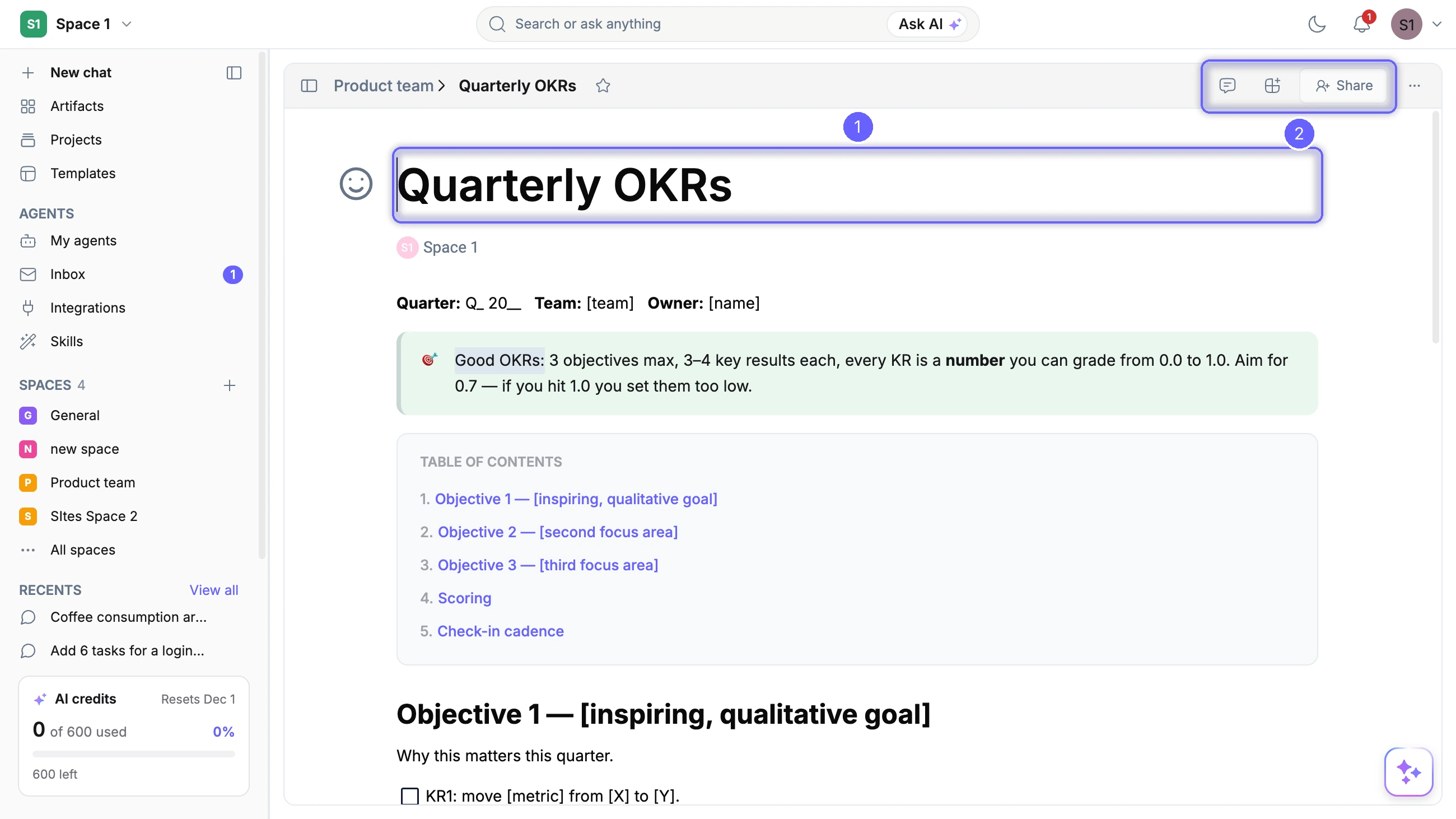
| Control | What it does |
|---|---|
| AI chat toggle | Opens the AI chat beside the doc. |
| Space crumb | In a space, goes back to it. |
| Name and star | Rename the doc, or add it to favourites. |
| Comments counter | Opens the comments. |
| Insert panel (Ctrl+/) | Search every block you can add. |
| Share | Invite people and set link access. |
| ⋯ | Page options and doc actions. |
The header holds a page icon (emoji or icon picker), the title, an author chip (pick members), an optional cover, a subtitle, contributors and last edited. Choose which show under ⋯ > header toggles.
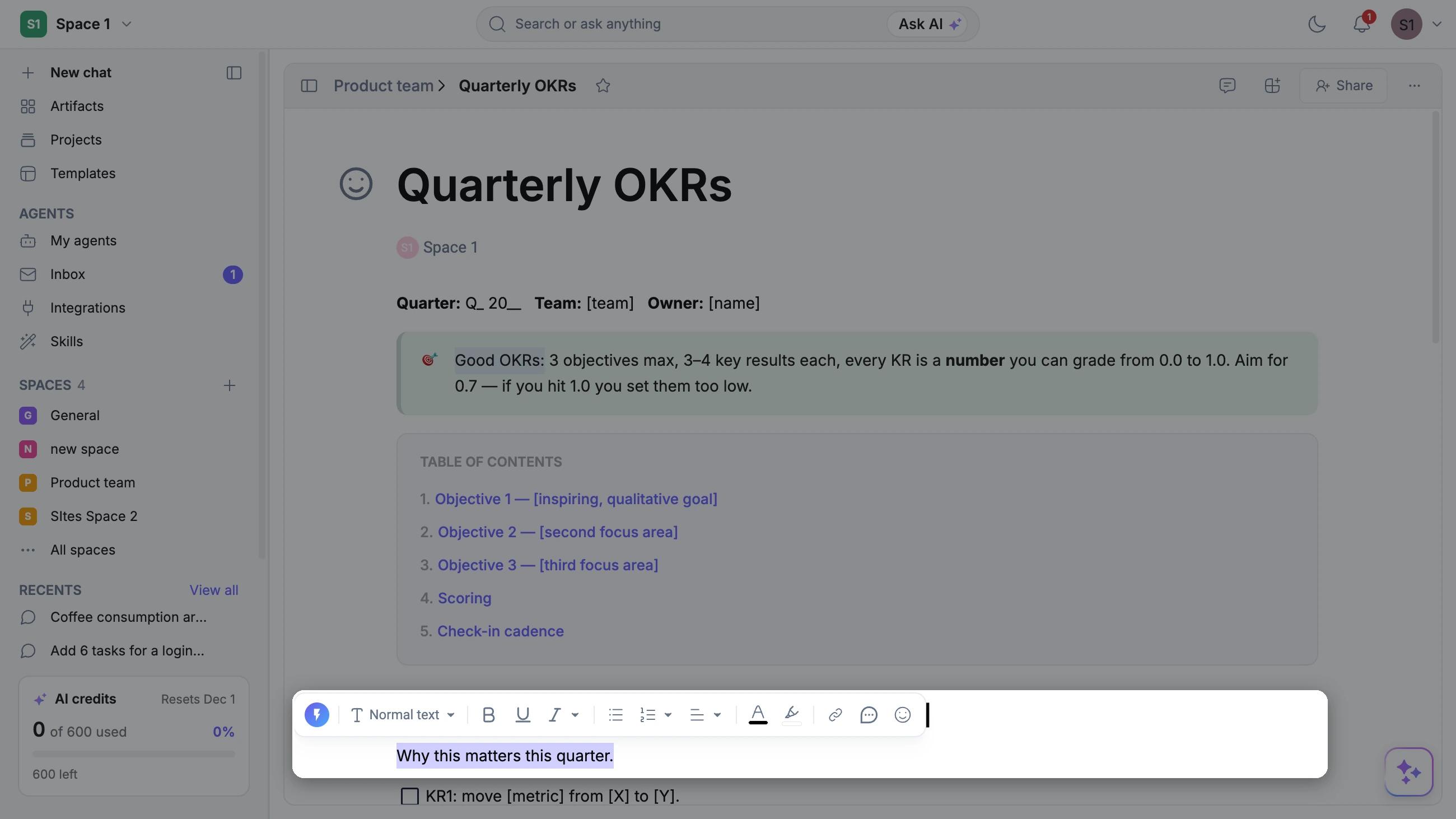
Select text for: AI actions, Turn into (Normal, H1–H6, Quote, Code), Bold, Underline, Italic & more, Lists & indent, alignment, text colour (17 colours plus custom), highlight, link, comment and emoji.
| Option | What it does |
|---|---|
| Font | Default, Serif or Mono |
| Small text | A smaller text size |
| Table of contents | An "On this page" minimap at the side |
| Suggest edits | Edits become tracked suggestions |
| Page width, stats | Writing width; word count and more |
| Import | Add a Markdown file |
| Export | PDF, Word or Markdown |
| Rename, Copy Link, Duplicate, Move to | Doc actions |
| Version History | Earlier versions |
| Save as Template | Reuse the doc |
| Delete | Remove the doc |
| Keys | Action |
|---|---|
| Cmd/Ctrl+Alt+0 … 6 | Normal text, Heading 1 … 6 |
| Cmd/Ctrl+Shift+8 / 7 / 9 | Bullet, numbered, task list |
| Cmd/Ctrl+Shift+6 / 5 | Toggle list, quote |
| Tab / Shift+Tab | Indent, outdent |
| Cmd/Ctrl+K | Link |
| Cmd/Ctrl+E | Code block |
| Cmd/Ctrl+/ | Insert panel |
| @ / : | Mention a person / emoji |