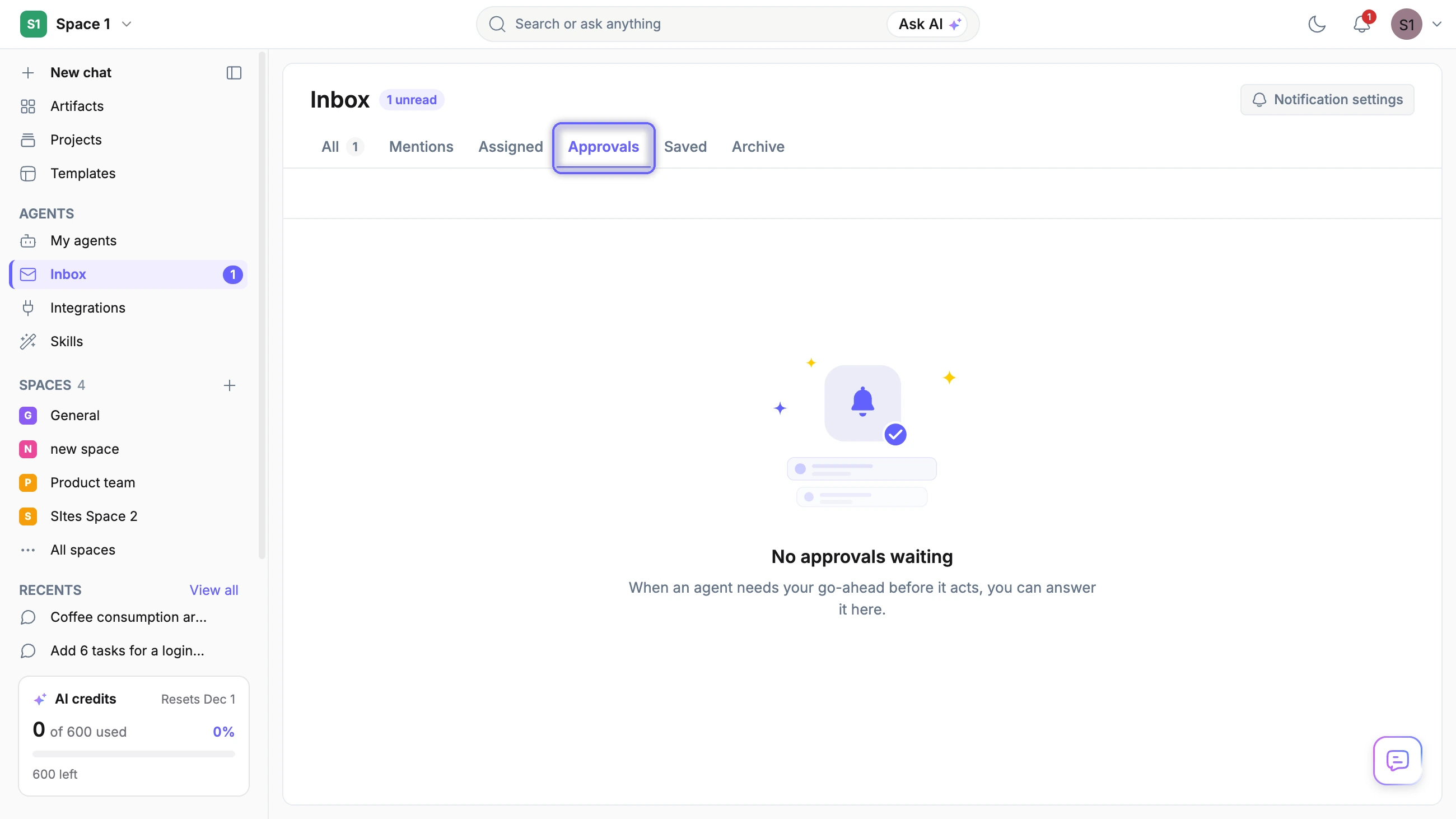
When an agent needs your go ahead to make or change something, it waits in the Approvals tab of your Inbox, and nothing runs until you answer.
Each skill on an agent is set to Auto or Ask (see Configure an agent). A skill on Ask stops before it acts and asks you. This keeps you in control of actions such as sending an email, posting to a channel or creating an item, especially for agents that run on a schedule.
In the left sidebar, under Agents, click Inbox.
Click the Approvals tab.
A small amber dot next to Inbox in the left sidebar means an agent is waiting for an answer. The number next to it is your unread count. The bell in the top bar also opens a short Inbox list, with Open inbox for the full page.
The list shows Waiting on you with the number of steps waiting. Each item says which agent (or chat) is asking and what it wants to do.
For each item:
Click Open chat to see the whole conversation first, if you need to.
Click Approve to let the agent go ahead, or Deny to stop that step.
After you decide, the item shows Approved, Denied, or Failed if the step could not run. Your answer is the same as answering in the agent's chat, which then shows Answered in your inbox.
| Filter | Shows |
|---|---|
| All approvals | Everything waiting on you |
| Create | Requests to make a new item |
| Change | Requests to change an existing item |
| Run an action | Requests to act in a connected app |
| Needs your answer | Questions the agent needs you to answer |
If a filter shows nothing, click Clear filter. When the list is empty, you see "Nothing waiting for approval".
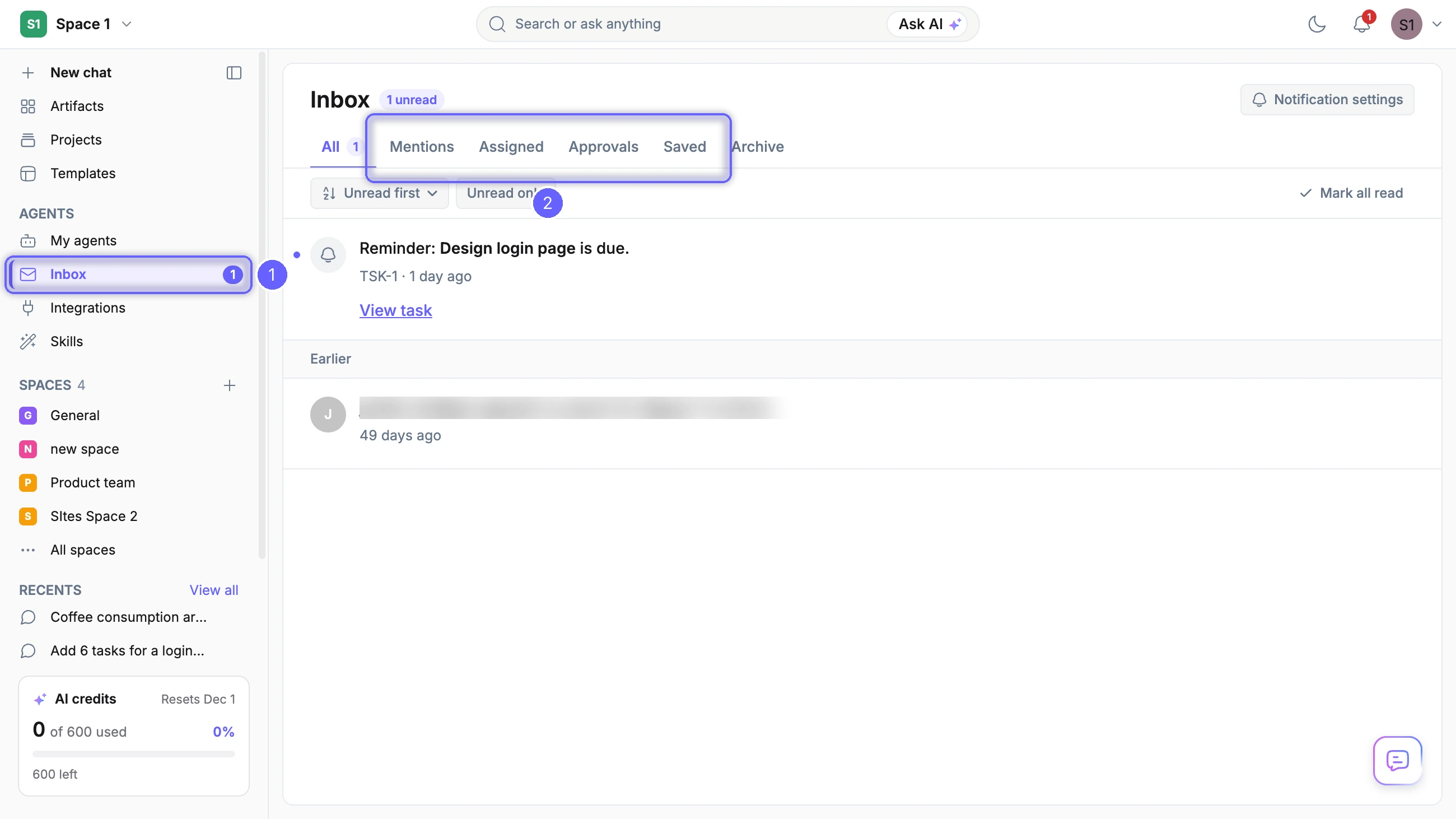
The Inbox is one list for the whole workspace: mentions, comments, shares, requests and agent runs, as well as approvals.
| Tab | Shows | When it is empty |
|---|---|---|
| All | Everything | "You are all caught up" |
| Mentions | Places someone mentioned you on a canvas, a doc or a card | "No mentions yet" |
| Assigned | Cards assigned to you and your card reminders | "Nothing assigned to you" |
| Approvals | Agent steps waiting on you (see above) | "No approvals waiting" |
| Saved | Alerts you saved | "Nothing saved" |
| Archive | Alerts you archived | "Archive is empty" |
Use the Left and Right arrow keys to move between tabs.
Sort and filter. The toolbar has a sort menu (Unread first or Newest first), a Show unread only switch and Mark all read. With nothing unread, the list says "No unread alerts"; click Show all to turn the switch off. Notification settings at the top opens your alert settings (see Notification settings).
Answer a row in place. An invite, a licence request or an edit request has Accept and Decline. An agent approval has Approve and Deny. Agent run rows show Finished or Failed. Clicking a row marks it read and opens what it is about.
Row tools. Point at a row for Mark as read (or Mark as unread), Save, Archive and Delete. Delete removes the alert at once. In the Archive tab, Move back to inbox returns it.
The bell in the top bar shows the same rows in a short list, with Open inbox and What's new. If the list cannot load, you see "Could not load your inbox" with Try again.