The Agent configuration panel is where you change an agent's instructions, skills, apps, memory, sharing, schedules and model.
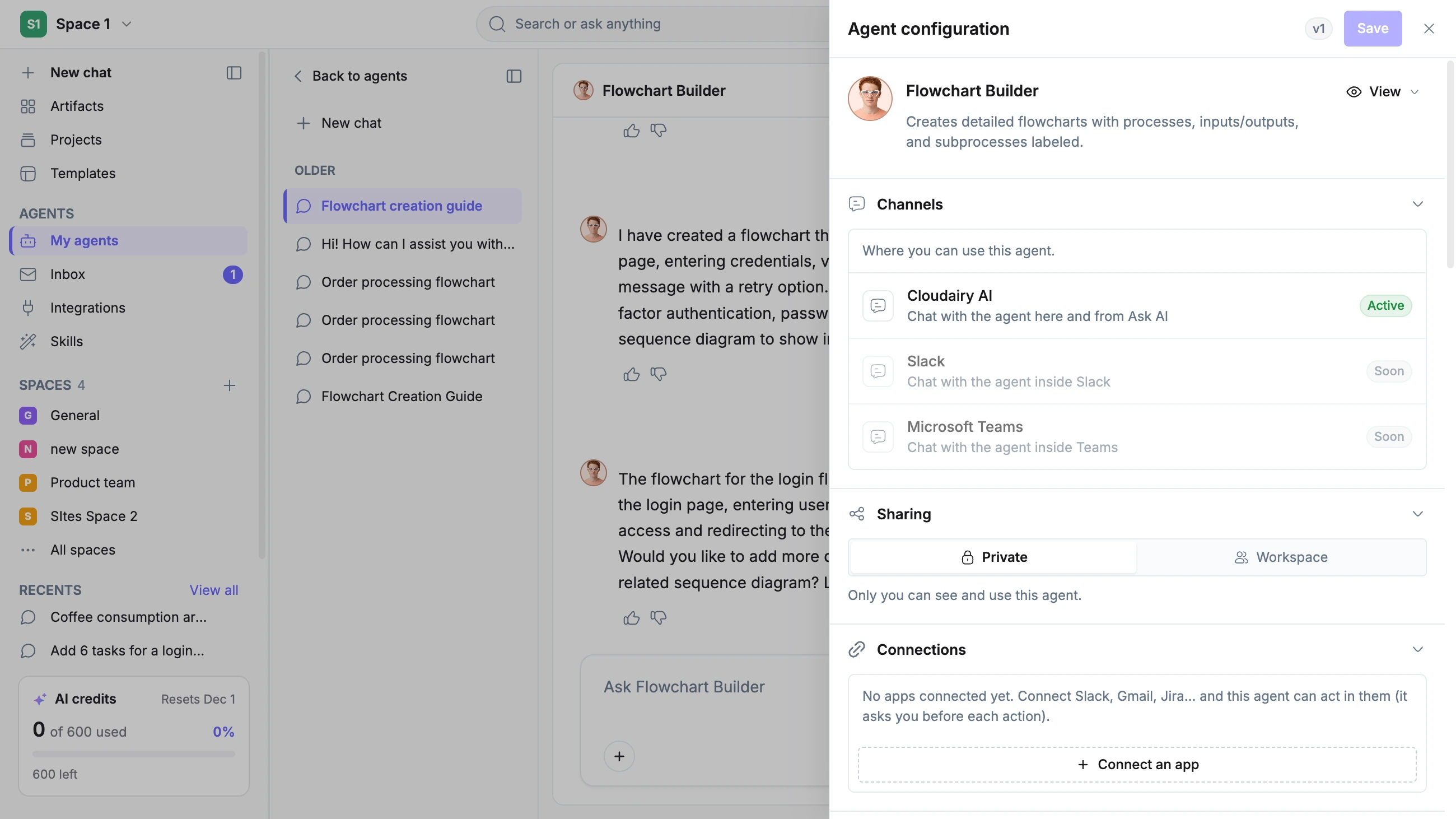
In the left sidebar, under Agents, click My agents.
Click the agent to open its chat.
Click Configure in the chat's header.
You can also click Agent options (⋯) on the agent's card in My agents and choose Edit, or use Agent actions (⋯) > Configure agent on the design canvas.
Make your changes, then click Save. If you close the panel with changes not saved, Cloudairy asks "Discard changes?": click Discard or Keep editing. Every save keeps the previous version.
Click the name or description at the top of the panel to change them. Next to them, View (View agent as) has:
AGENTS.md.| Section | What you set |
|---|---|
| Channels | Where you can use the agent. Cloudairy AI is Active: chat with it on its page and from Ask AI. Slack and Microsoft Teams are marked Soon. |
| Sharing | Private (only you can see and use it) or Workspace (everyone in the workspace can use it; each run uses their own access and credits). |
| Connections | The connected apps this agent may act in. Click Connect an app to add one. |
| Knowledge | The agent's Instructions, Skills and Memory. |
| Conversation starters | The suggestions shown when a chat starts. One per line. |
| Schedules | Times when the agent runs on its own. |
| Triggers | Events in connected apps that start the agent. |
| Sub-agents | Other agents this one can hand part of a job to. |
| Advanced settings | The Model it uses and its Version. |
Under Knowledge, find Instructions and click Edit (or the preview).
Change the text and save.
Write them the way you would brief a colleague: what to make, for whom, in what format, and what to avoid.
Under Knowledge > Skills, click Add skill.
Choose:
To remove a skill, click its options (⋯) and choose Remove from agent. Open shows the skill's details.
Skills from the Skills page are shared with every agent in the workspace. See Skills.
Each skill has a switch:
Use Ask for anything you want to check first, such as posting to Slack or sending an email. See Inbox and approvals.
Under Connections, switch on the apps the agent may use. Turning one on also turns on the Use connected apps skill. If no apps are connected yet, click Connect an app. See Connect an app.
Under Knowledge > Memory:
Pick other agents this one can hand part of a job to. Each works in its own chat and reports back. You need at least one other agent.
Advanced settings shows the Model the agent uses and its current Version. For how models differ, see Choose an AI model.
The panel says "Shared with you — you can use this agent but only its owner can change it."