See how you sign in to Cloudairy and change your password.
Click your avatar in the top bar, then click My profile.
On Personal info, look at the Sign-in & security card.
It shows how you sign in, marked Connected:
| Shown as | What it means |
|---|---|
| Email + password | You sign in with your email and a Cloudairy password. |
| You sign in with your Google account. | |
| Microsoft | You sign in with your Microsoft account. |
| Single sign-on (SSO) | You sign in through your company's identity provider. |
Only an Email + password account has a Cloudairy password. If you sign in with Google, Microsoft or SSO, your password is managed there.
In Profile settings, click Password. Or click Change next to Password on the Sign-in & security card.
Enter your Current password.
Enter a New password. It must be at least 8 characters and different from your current one.
Enter it again in Confirm new password.
Click Update password.
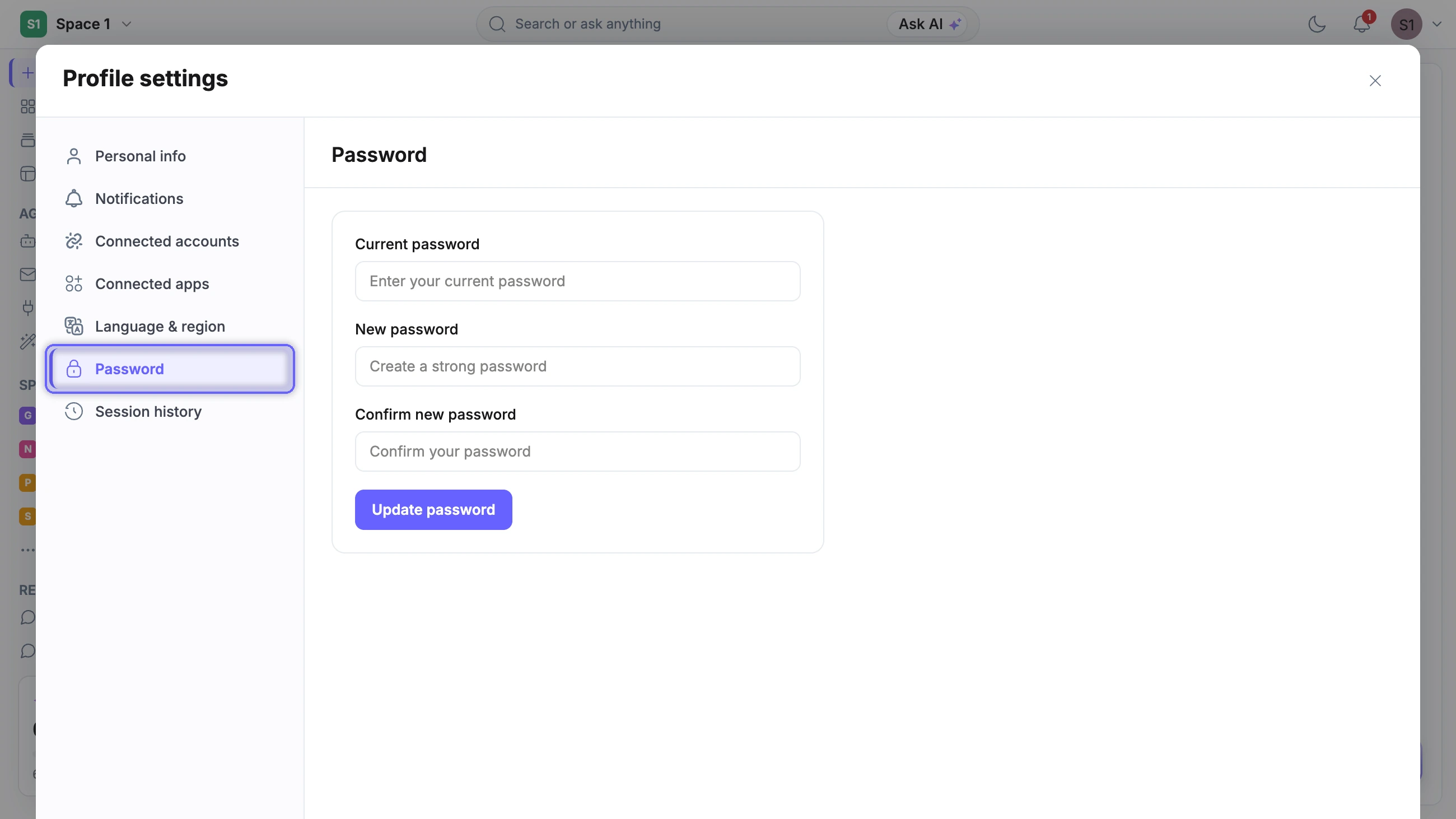
You see Password updated. If something is wrong, a message tells you what:
| Message | Fix |
|---|---|
| Fill in all three fields. | Fill in every box. |
| New password must be at least 8 characters. | Use a longer password. |
| Passwords do not match. | Type the same new password twice. |
| New password cannot be the same as the old password. | Pick a new one. |
On the sign in page, click Forgot Password?
Enter your email address.
Follow the link in the email to set a new password.
If your company uses single sign-on, click the key button (Sign in with SSO) on the sign in page and enter your work email. You go to your company's sign in page, then back to Cloudairy. See Single sign-on (SSO).
Session history in Profile settings is empty for now. Cloudairy does not record sign-in sessions for your account yet. To sign out, click your avatar and then Log out.