Choose which alerts reach you in the app, by email and in Slack.
Notification settings are personal. Changing yours does not change anyone else's.
Click your avatar in the top bar, then click My profile.
Click Notifications.
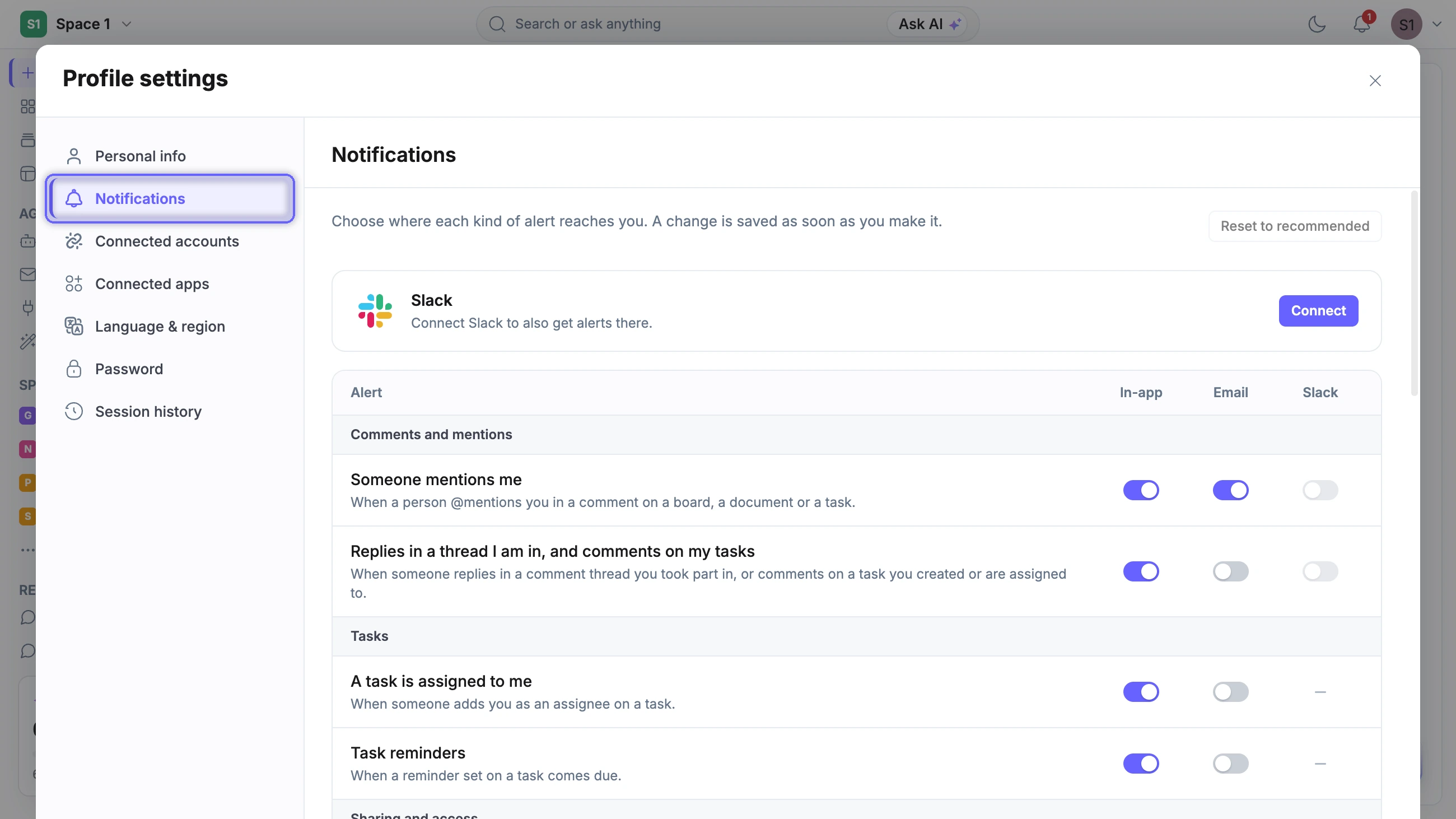
The page lists each kind of alert in groups. Each row has a switch in up to three columns:
| Column | Where the alert goes |
|---|---|
| In-app | Your Inbox in Cloudairy |
| Your email address | |
| Slack | A direct message from Cloudairy in Slack |
Find the alert.
Turn the switch on or off in the column you want.
Each change saves on its own. You see Saving and then Saved. If a change fails, you see Could not save. Try again.
A dash means that alert is not offered on that channel. Some switches are always on. Point at one to see why, for example "Always shown in your Inbox, so the request is not missed."
| Group | Alerts |
|---|---|
| Comments and mentions | Someone mentions me · Replies in a thread I am in, and comments on my tasks |
| Tasks | A task is assigned to me · Task reminders |
| Sharing and access | Something is shared with me · A board is added to a space I am in · Someone asks me for access · My access request is answered · My access is changed or removed |
| Workspace | I am invited to a workspace · Member changes · Someone asks for a licence · My licence request is answered · An automation was paused |
| Agents | An agent needs my approval · An agent run failed · An agent run finished |
| Support | Support ticket updates |
A workspace invite always reaches your Inbox and your email, and so do support ticket updates.
At the top of Notifications, find the Slack card.
Click Connect.
Slack opens. Pick your Slack workspace and approve.
Back in Cloudairy, the card says Connected. Choose which alerts also go to Slack in the Slack column.
Turn on the Slack switch for each alert you want there.
Some alerts, such as Someone mentions me, are on for Slack by default. Until Slack is connected, the Slack column stays off and says Connect Slack to use this.
To stop, click Disconnect on the Slack card. Your in-app and email choices stay as they are.
The Product news by email card has a Subscribe or Unsubscribe button. It is separate from your alerts.
Click Reset to recommended, then Reset to confirm. Every alert you can change goes back to its default. If you are already on the recommended settings, the button is greyed out.
You see Your notification settings could not be loaded. Click Try again.