Add teammates to your workspace and choose whether they can edit or only view.
Inviting members is on paid plans. On Free, an invite shows Inviting members is on paid plans with an Upgrade button. Workspace owners and admins can invite people.
Open the invite dialog in one of these ways:
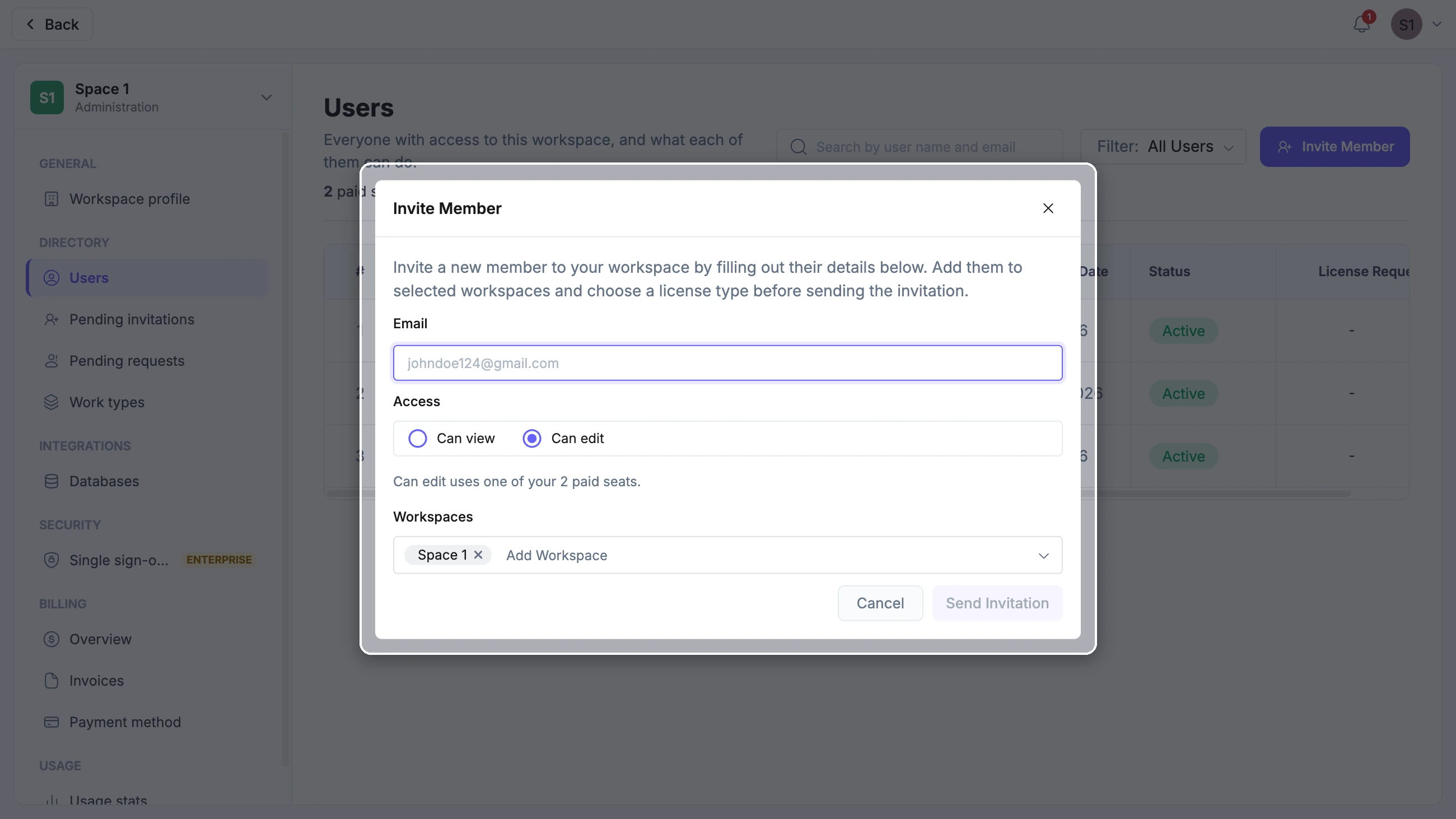
In Invite Member, type an Email address.
Under Access, choose Can view or Can edit.
The note under it tells you what this costs: "Can view is free: they can look at everything but not edit, create or use AI." or "Can edit uses a paid seat."
Choose the workspaces to add them to (Add Workspace).
Click Send Invitation.
The person gets an invitation alert and an email. They show as Pending until they accept, and their invite waits under Pending invitations.
If you choose Can edit and every paid seat is taken, the dialog says so:
You can always invite someone with Can view, which is free.
When someone invites you:
Open your Inbox (or the bell in the top bar).
Find the invitation and click Accept. Click Decline if you don't want to join.
You can then switch to the new workspace. See Workspaces.