Your account settings live in Profile settings, where you change your own details: your name, photo, password, connected drives and apps, and notifications.
These settings are about you, not the workspace. Everyone can open them, whatever their role.
Click your avatar in the top bar. The menu's header shows your name, email, plan and the AI credits left this month. Below it are My profile, Administration (owners and admins), Teams, Archive, the Light and Dark theme switch, Switch team and Log out, plus Invite members and Manage plan.
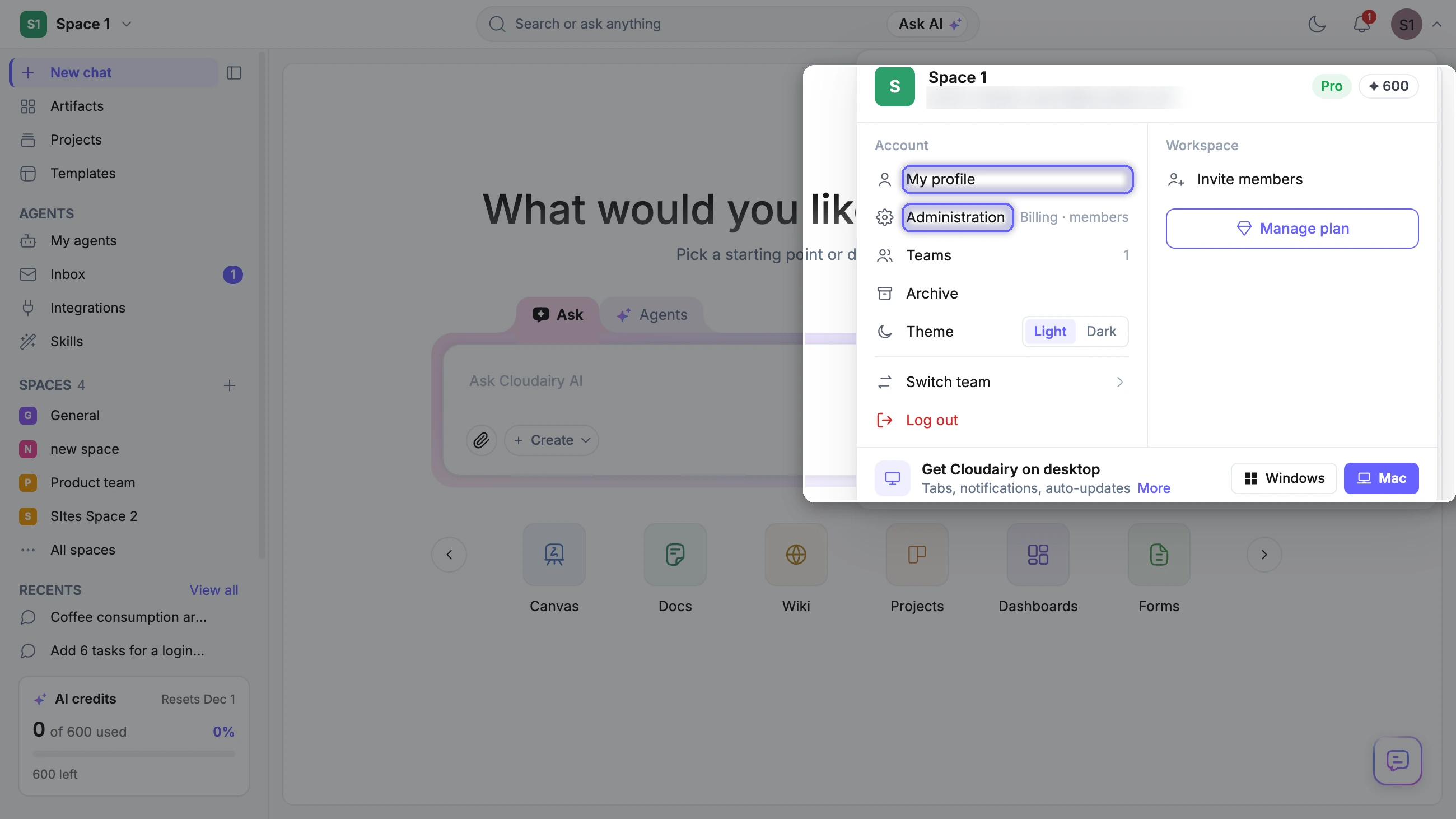
Click your avatar in the top bar.
Click My profile.
Profile settings opens with these sections on the left:
| Section | What it is for |
|---|---|
| Personal info | Your name, email, role, photo, workspaces and how you sign in. |
| Notifications | Which alerts you get, and where. |
| Connected accounts | Google Drive and OneDrive, for importing and saving copies. |
| Connected apps | AI apps you have allowed to use Cloudairy. |
| Language & region | The language and time zone Cloudairy uses. |
| Password | Change your password. |
| Session history | A list of your sign-in sessions (not recorded yet). |
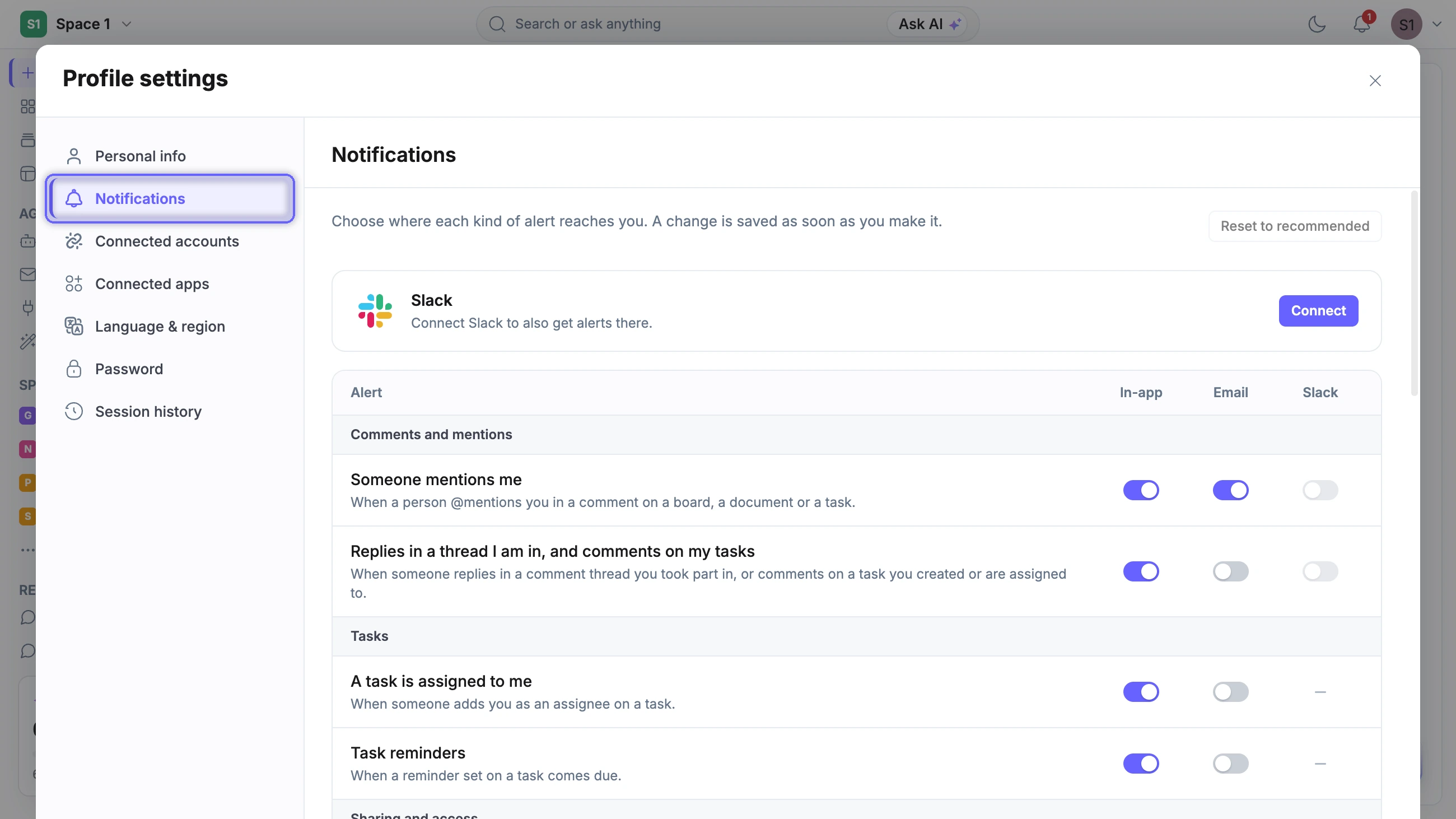
In Personal info, click Edit profile.
Change your First name and Last name. Both are required.
Change your Organization name.
Optional: pick an answer for What kind of work do you do?
To change your photo, click Upload image.
Click Save.
Your Email address is shown but cannot be changed. It is your account's identity.
The Workspaces card on Personal info lists every workspace you belong to. Each row shows its plan. The one you are in is marked Current. To switch, use Switch team in the avatar menu.
Language & region shows the Language and Time zone Cloudairy uses for menus, dates and due times. Both are taken from your browser. To change them, change your browser or computer settings.
Click your avatar in the top bar. In the theme row, click Light or Dark.
Click your avatar in the top bar.
Click Log out.